
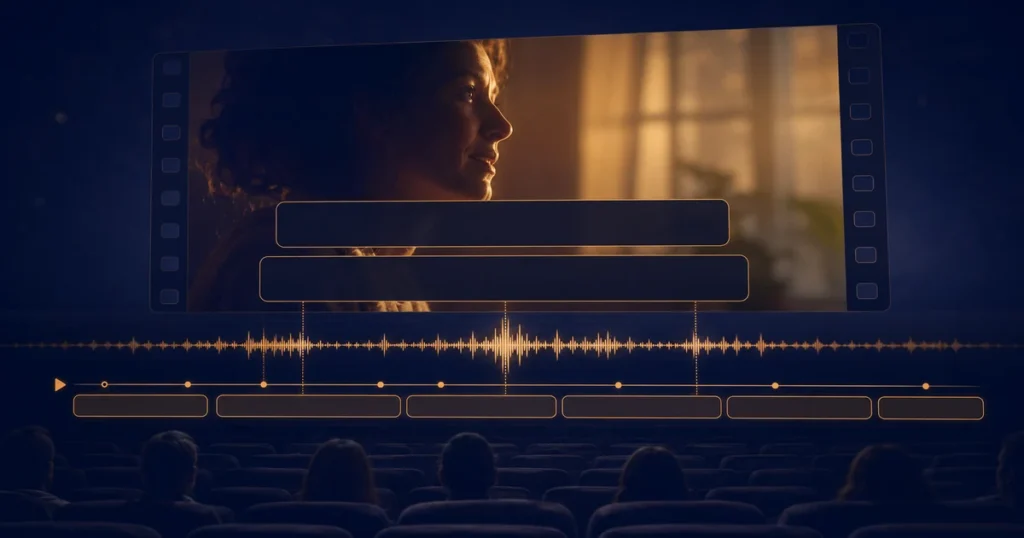
Well-timed subtitles make video understandable without sound and improve access for viewers who are deaf, hard of hearing, learning a language, or watching in a noisy place. Learning how to add subtitles to video gives you a repeatable process instead of relying on memory or guesswork.
This practical guide explains the underlying idea, the important results to review, a safe step-by-step workflow, and the mistakes that most often cause trouble. You can complete the main task with UptimeFixer’s Add Subtitles to Video.
What add subtitles to video actually means
An SRT subtitle file contains numbered caption blocks with start and end timestamps plus text. Burning subtitles into video renders the captions into every frame, while selectable subtitle tracks remain separate when a platform supports them.
Accurate captions expand access and retention, but timing, line length, contrast, speaker clarity, and proofreading all affect usability. A useful result should make the next decision clearer while preserving enough context to check what changed.
What to review in the result
Timestamp sequence
Controls when each caption appears and prevents overlaps or backwards timing. Review this signal alongside the source and the intended destination rather than treating it as an isolated score.
Reading speed and line length
Determine whether viewers have enough time to understand the text. Review this signal alongside the source and the intended destination rather than treating it as an isolated score.
Visual placement
Keeps captions readable without covering names, controls, or essential action. Review this signal alongside the source and the intended destination rather than treating it as an isolated score.
How to add subtitles to video step by step
- Define the intended result. Write down what a correct output should look like and prepare the final authorized video and a UTF-8 SRT file whose captions have already been proofread. This prevents the tool from becoming a substitute for a clear requirement.
- Protect the source. Keep an untouched copy, remove information that does not belong in the test, and label the working version clearly.
- Use the Add Subtitles to Video. Open the Add Subtitles to Video, add the prepared input, and review every available option before processing it.
- Inspect the full output. Look beyond the headline result. Review timestamp sequence, reading speed and line length, visual placement and compare the output with the expected behavior.
- Verify before using it. Use the result to proofread while watching at normal speed and correct timing, wrapping, names, and sound cues. Keep the verified output separate from drafts or tests.
A reliable working method
For a dependable video workflow, keep the master file, create a destination-specific copy, and test a short difficult section before processing the full video. Watch the final export with sound and captions at the size viewers will use.
Before accepting the result, pause and ask three questions: Was the input the exact version I intended to use? Did the settings match the destination? Did I inspect the result rather than only seeing that the tool completed? Those checks catch many avoidable errors.
When the task will recur, record the naming rules, inputs, settings, and approval step in a short checklist. Consistency makes later troubleshooting faster and allows another team member to reproduce the outcome.
Best practices
- Use short natural caption lines.
- Identify speakers when the voice is not obvious.
- Include meaningful sound cues where appropriate.
- Watch the burned output from beginning to end.
These habits protect accuracy without making the process unnecessarily slow. The best workflow is usually the smallest one that preserves the original, exposes meaningful differences, and includes a final verification.
Common mistakes to avoid
- Avoid: Relying on unedited automatic captions.
- Avoid: Using low contrast over changing footage.
- Avoid: Letting captions cover important lower-third graphics.
Most failures begin with an unclear requirement, the wrong input, or an unchecked output. Correct those three points before adding more tools or complexity.
Final quality checklist
- Keep the original master video.
- Confirm format, resolution, frame rate, and duration.
- Check audio sync and volume.
- Inspect motion, faces, text, gradients, and captions.
- Watch the final file before publishing.
Privacy and safety: Process only media you are authorized to use. Review faces, voices, personal details, licensed music, and confidential screen content before distributing the result.
Frequently asked questions
What does add subtitles to video mean?
An SRT subtitle file contains numbered caption blocks with start and end timestamps plus text. Burning subtitles into video renders the captions into every frame, while selectable subtitle tracks remain separate when a platform supports them. In practice, the goal is to make the input easier to understand, verify, or use without losing control of the original.
Can I use the Add Subtitles to Video for free?
UptimeFixer provides the Add Subtitles to Video as an online utility. Review its current page for the available controls, supported inputs, and practical browser limits.
Should I trust the first result?
Treat it as a working result. Confirm the input, review the important signals, and proofread while watching at normal speed and correct timing, wrapping, names, and sound cues. Important business, security, accessibility, or production decisions deserve a second check.
How often should this task be repeated?
A practical schedule is for every public or client video that needs accessible or language-specific captions. Repeat it sooner when the source, destination, requirement, or reported problem changes.
Final thoughts
Well-timed subtitles make video understandable without sound and improve access for viewers who are deaf, hard of hearing, learning a language, or watching in a noisy place. A structured workflow turns the task into a controlled decision: prepare the correct input, protect the source, use the tool, inspect the important signals, and verify the result in context.
Try the free Add Subtitles to Video, or explore more Video Guides on UptimeFixer.